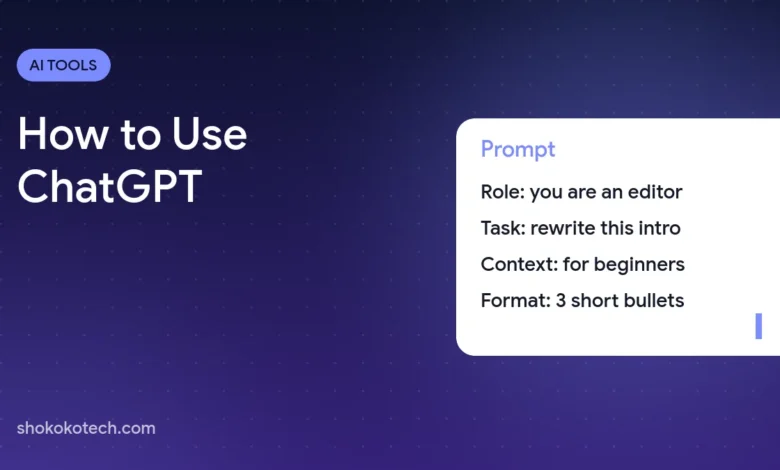
To use ChatGPT, go to chatgpt.com or download the ChatGPT app, sign up for a free account and type a question or request in the message box. ChatGPT answers in seconds, and you can reply to refine the answer, upload files and photos, talk to it by voice or ask it to create images. The more context you give, the better the result. This beginner’s guide explains the main features, ten practical ways to use ChatGPT with example prompts, and how to keep your information private.
What is ChatGPT?
ChatGPT is an AI assistant made by OpenAI. It understands everyday language and can write, summarize, explain, translate, brainstorm, analyze files and images, and help with code. It works in a web browser and in apps for iPhone, Android, Windows and Mac. The free plan includes unlimited text chats with OpenAI’s GPT-6 Luna model, and paid plans add more usage and advanced features. Read what is new in GPT-6 in ChatGPT.
How do you get started with ChatGPT?
- Open ChatGPT at chatgpt.com or install the official app from the App Store or Google Play. Check that the developer is OpenAI; many copycat apps exist.
- Create a free account with your email, Google, Microsoft or Apple account. Use a strong, unique password; see how to create a strong password.
- Type your first message in the box at the bottom and press Enter.
- Keep the conversation going. Reply with follow-ups such as “make it shorter” or “give me three more options”. ChatGPT remembers what you said earlier in the same chat.
- Start a new chat for a new topic, so old context does not confuse the answers.
The main ChatGPT features, explained
| Feature | What it does | When to use it |
|---|---|---|
| Chat | Ask questions and give instructions in plain language | Everything, from emails to explanations |
| File and photo upload | Reads PDFs, documents, spreadsheets and images | Summarize a report, explain a chart, read a receipt |
| Web search | Looks up current information and shows sources | News, prices, recent facts |
| Voice | Talk to ChatGPT and hear spoken answers | Practice a language, brainstorm while walking |
| Image creation | Creates and edits images from a description | Illustrations, social posts, ideas |
| Projects | Groups chats and files on one topic with shared instructions | A class, a business, a long writing project |
| Memory and custom instructions | Remembers preferences you choose to share | Tell it your role, tone and format once |
| Study mode | Guides you with questions instead of giving answers | Learning a subject or preparing for exams |
Feature names and limits change often, and some are only available on paid plans or in certain countries.
10 practical ways to use ChatGPT (with prompts)
- Write an email: “Write a polite email to my landlord asking to fix the heater this week. Keep it under 120 words.”
- Summarize a long document: upload a PDF and ask “Summarize this in 5 bullet points and list any deadlines.”
- Explain something simply: “Explain inflation like I am 12, with one real-life example.”
- Plan your week: “Here are my tasks and deadlines. Make a realistic schedule for Monday to Friday.”
- Prepare for an interview: “Act as an interviewer for a junior marketing role. Ask me one question at a time and give feedback.”
- Cook with what you have: “I have eggs, spinach, rice and cheese. Suggest three dinners under 30 minutes.”
- Learn a language: “Talk to me in simple Spanish about my weekend and correct my mistakes.”
- Brainstorm content: “Give me 10 Instagram post ideas for a small bakery.” See how to plan social media content with AI.
- Learn to code: “Explain this error and give me a hint, not the fix.” Read how to learn to code with AI.
- Check your writing: “Make this paragraph clearer without changing my voice,” then check the length with our free Word Counter.
How do you get better answers from ChatGPT?
- Give context: who you are, who the result is for and why you need it.
- Be specific about the output: length, format (table, list, email), tone and language.
- Show an example of what you like, and ask it to match the style.
- Ask follow-up questions instead of starting over: “Make point 3 more detailed.”
- Ask it to check itself: “What might be wrong or missing in this answer?”
Our guide on how to write better AI prompts explains a simple framework with more examples.
What are ChatGPT’s limits?
- It can be wrong. ChatGPT sometimes gives confident answers that are incorrect or outdated. Check important facts, numbers and quotes, especially for health, money and legal questions.
- It does not know your situation unless you explain it.
- Usage limits apply, especially for advanced models, file analysis and image creation on the free plan.
- Your school or job may have rules about using AI. Follow them.
How do you keep your data private in ChatGPT?
- Do not share passwords, card numbers, ID numbers or private medical details.
- Use a Temporary Chat for sensitive topics; it does not appear in your history.
- Review the data controls in Settings, including whether your chats can be used to improve the models, and what memory saves.
Step-by-step instructions are in our guide to AI chatbot privacy settings.
Is ChatGPT free, and should you upgrade?
The free plan is enough for most everyday tasks. Consider a paid plan if you hit usage limits often, need more advanced reasoning, analyze many files or create lots of images. Check OpenAI’s pricing page for current plans and prices. If you are choosing between assistants, compare them in ChatGPT vs Claude vs Gemini, and see more free options in our list of the best free AI tools.
Use Google apps every day? Compare with our guide on how to use Gemini, Google’s AI assistant.
Want to try a different assistant? Read our beginner’s guide on how to use Claude.
Sharing a device? ChatGPT now lets you hide conversations behind a PIN or Face ID. See our guide to ChatGPT locked chats.
Getting an error? See ChatGPT not working: how to fix common errors.
Frequently asked questions
Do I need an account to use ChatGPT?
You can try basic chats without signing in, but a free account saves your history and unlocks features such as file uploads, projects and memory.
Can ChatGPT browse the internet?
Yes. ChatGPT can search the web for current information and show the sources it used. Open the sources to check the details.
Is it safe to use ChatGPT?
It is safe for everyday use if you avoid sharing sensitive personal information and review your privacy settings. Always double-check important answers.
Can ChatGPT create images?
Yes. Describe the image you want, then ask for changes in follow-up messages. Compare it with other options in our list of the best AI image generators.
Start with one small task
Open ChatGPT, pick one thing on today’s to-do list, such as an email or a summary, and ask for help with clear context. Once you see how it works, try the other uses above. For more AI tools for everyday life, explore our AI tools guide.
Sources
This article is based on the official documentation and reporting listed in the sources above, checked on October 18, 2026. Features and prices change, so confirm details on the official pages before you buy. ShokokoTech does not accept payment for coverage. Read our editorial policy.