A strong password is long, random and used for only one account. The easiest way to create one is with a password generator: aim for at least 16 random characters, or a passphrase of 7 or more random words for passwords you need to type. Save it in a password manager, turn on two-factor authentication and switch to passkeys where a site offers them. This guide shows how to do each step and what to avoid.
What makes a password strong?
Three things matter, in this order:
- Length. Every extra character multiplies the number of guesses an attacker needs. The U.S. Cybersecurity and Infrastructure Security Agency (CISA) recommends passwords of at least 16 characters, and NIST’s digital identity guidelines ask websites to require at least 15 characters when a password is the only way to sign in.
- Randomness. Attackers try common passwords, dictionary words, names, dates and keyboard patterns first. A password chosen by a random generator has none of these patterns.
- Uniqueness. When one website is breached, attackers try the same email and password on other sites. A unique password for every account stops one leak from unlocking the rest.
| Password | Why it is weak or strong |
|---|---|
Summer2026! | Weak: a season, a year and a symbol at the end is a very common pattern |
P@ssw0rd123 | Weak: swapping letters for symbols does not fool password-cracking tools |
Fluffy1987 | Weak: pet names and birth years are easy to find on social media |
v7#Qm2!xLp9@Tz4e | Strong: 16 random characters |
Maple-River-Copper-Tiger-Window-Falcon-Lemon7 | Strong: seven random words plus a number, and easy to type |
Never use the examples on this page, because published passwords end up in attackers’ word lists.
How do you create a strong password step by step?
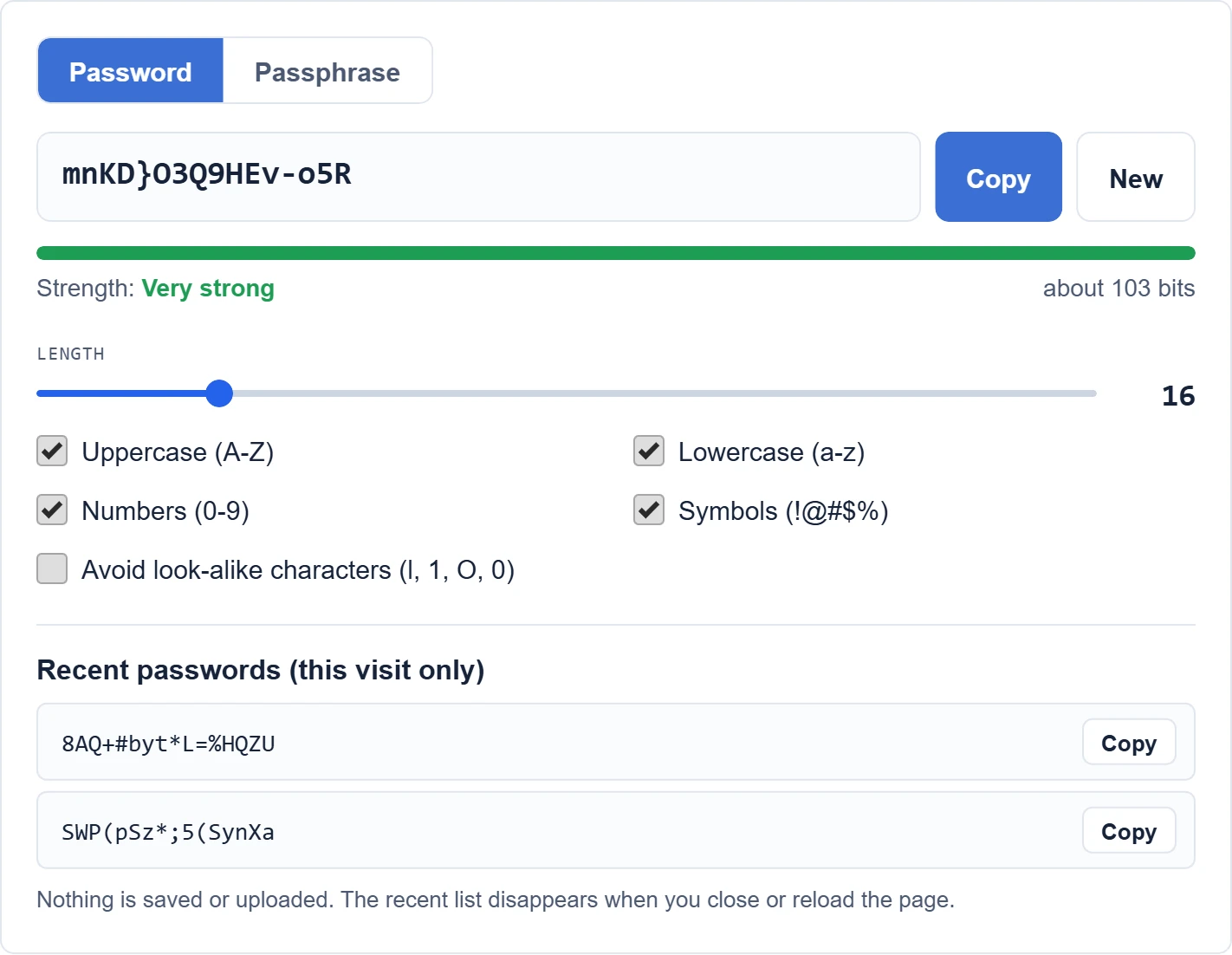
- Open a password generator. Use our free Password Generator or the one built into your password manager. Ours runs in your browser and does not send or store the passwords it creates.
- Set the length to 16 or more. For your email, bank and password manager, use 20 or more.
- Turn on all character types the site allows: uppercase, lowercase, numbers and symbols. If a site rejects symbols, turn them off and add four or five characters of length instead.
- Copy the password into the site and save it in your password manager at the same time.
- Repeat for every account. Never reuse a password, even with a small change at the end.
How do you make a strong passphrase you can remember?
Some passwords must be typed by hand: your computer login, your phone, and the master password of your password manager. For these, a passphrase of random words is easier to type and remember than random symbols.
- Let a tool choose the words. In our Password Generator, switch to Passphrase and choose 7 or more words. Words people pick themselves are far easier to guess.
- Do not use quotes, song lyrics or famous phrases. They are in attackers’ lists.
- Add a separator and a number if the site requires them, for example
Crisp-Jaguar-Volcano-Plum-Delta8-Comet-Crown. - Practice it a few times in the first days, then keep a backup in a safe place until you remember it.
How long should a password be?
| Account | Recommended length |
|---|---|
| Everyday accounts saved in a password manager | 16 or more random characters |
| Email, banking and cloud storage | 20 or more random characters, plus two-factor authentication |
| Password manager master password, computer login | A passphrase of 7 or more random words |
| Wi-Fi network | 16 or more characters; share it with a Wi-Fi QR code instead of reading it out |
What should you avoid?
- Personal details: names of family members or pets, birthdays, addresses, phone numbers or your favorite team.
- Common words and patterns such as
password,qwerty,123456oriloveyou. - Reusing a password, or making small changes such as adding a number to an old one.
- Sharing passwords by text message, email or chat, including AI chatbots. Check our AI chatbot privacy settings guide to see what those services keep.
- Writing passwords on a sticky note near your computer. A password manager is safer and more convenient.
Where should you store your passwords?
A password manager remembers every password for you, fills them in automatically and warns you about weak or reused ones. You only need to remember one strong passphrase.
- Built in and free: Google Password Manager in Chrome and Android, Apple Passwords on iPhone, iPad and Mac, and the password manager in Microsoft Edge.
- Dedicated apps: standalone password managers work across every browser and device, and add features such as secure sharing with family.
Whichever you choose, protect it with a long passphrase and two-factor authentication. Before installing any password app, use our checklist to check an app’s privacy before installing it.
How do you check if your password was leaked?
- Google Password Checkup: visit
passwords.google.comor open Chrome’s password manager to see saved passwords that were found in a data breach, reused or weak. - Apple Passwords: open the Passwords app and look at the security recommendations for compromised, reused and weak passwords.
- Have I Been Pwned: enter your email address on haveibeenpwned.com to see which known breaches included it.
If a password shows up in a breach, change it right away on that site and anywhere else you used it.
Add two-factor authentication and passkeys
Even a strong password can be stolen by a fake login page. Two-factor authentication (2FA) adds a second step, such as a code from an authenticator app or a prompt on your phone, so a stolen password alone is not enough. Turn it on first for your email, because your email can reset every other account.
Passkeys go one step further. They let you sign in with your fingerprint, face or device PIN, and they cannot be phished or reused. Google, Apple and Microsoft accounts support passkeys, and many other services do too. Where a site offers a passkey, use it. Learn more in what are passkeys.
Sharing your home network? A long random Wi-Fi password is easy to share without typing it. See how to make a QR code for Wi-Fi.
Next step after a strong password: turn on two-factor authentication for your most important accounts.
Frequently asked questions
Is a long password better than a complex one?
Yes. Length adds far more strength than a few swapped symbols. A 16-character random password or a 7-word random passphrase is much stronger than a short password like P@ssw0rd!.
Should I change my passwords every few months?
No, not on a schedule. NIST’s guidelines say services should not force regular password changes. Change a password when there is a sign it was exposed, such as a breach alert.
Are online password generators safe?
A good generator creates passwords on your device and never sends them anywhere. Our Password Generator uses your browser’s secure random number generator and does not store anything.
What is the most secure way to sign in?
A passkey is the most secure option today. Where passkeys are not available, use a unique, randomly generated password stored in a password manager, plus two-factor authentication.
Start with your most important accounts
You do not need to change everything today. Start with your email, then your bank, cloud storage and social media. Create a new password for each with our Password Generator, save it in a password manager and turn on two-factor authentication. For more free tools, see all our free online tools.
Sources
- NIST SP 800-63B-4: Digital Identity Guidelines
- CISA: Use Strong Passwords
- Google: Password Checkup
- Have I Been Pwned
This article is based on the official documentation and reporting listed in the sources above, checked on October 18, 2026. Features and prices change, so confirm details on the official pages before you buy. ShokokoTech does not accept payment for coverage. Read our editorial policy.