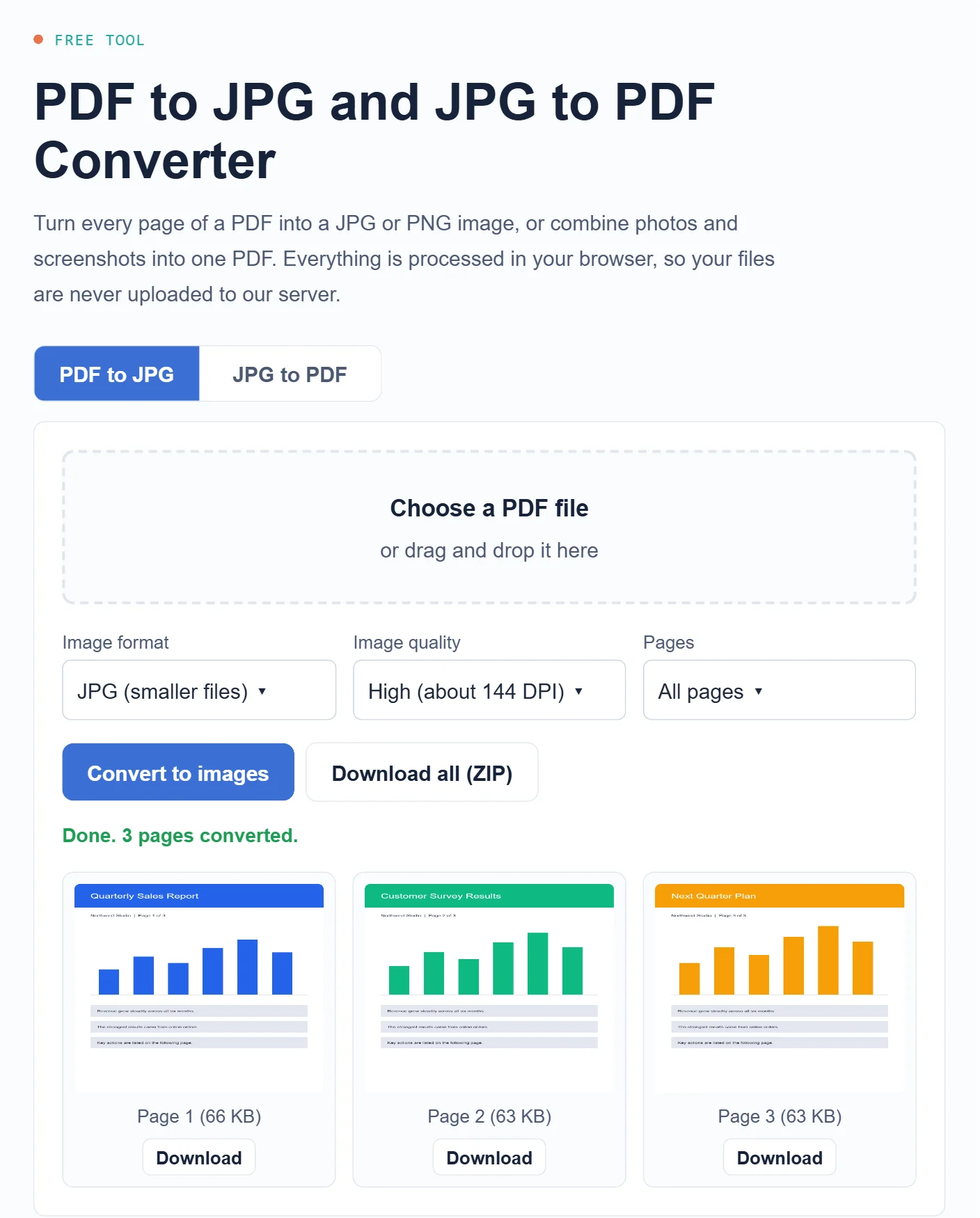
To convert a PDF to JPG for free, open our PDF to JPG converter, choose your PDF, pick the image quality and click Convert to images. Each page becomes a separate JPG that you can download one by one or all at once in a ZIP file. The same tool works in reverse, combining JPG, PNG or WebP images into one PDF. Everything runs in your browser, so your files are not uploaded. This guide also covers the built-in options on Mac, Windows, iPhone and Android, and which format to choose.
Why convert a PDF to JPG?
- Sharing on social media or chat apps: many apps show images instantly but make people download PDFs.
- Adding a page to a presentation or website: slides and web pages handle images more easily than PDFs.
- Uploading to forms: some online forms accept only JPG or PNG files.
- Previewing a document quickly: an image opens on any device without a PDF viewer.
Going the other way, combining photos into one PDF is the easiest way to send receipts, scanned pages or homework as a single file.
How do you convert a PDF to JPG online?
- Open the free PDF to JPG converter and stay on the PDF to JPG tab.
- Choose your PDF or drag it onto the page.
- Select JPG for smaller files or PNG for the sharpest text.
- Pick the image quality. High works for most documents.
- Click Convert to images, then download single pages or click Download all (ZIP).
Because the PDF is processed on your own device, the tool works well for documents you would rather not upload, such as forms and receipts.
How do you convert JPG images to a PDF?
- Open the converter and switch to the JPG to PDF tab.
- Add your images. You can select several JPG, PNG or WebP files at once.
- Use the Up and Down buttons to put the pages in order.
- Choose a page size: Same as image, US Letter or A4, and a margin.
- Click Create PDF. The tool downloads one PDF with every image on its own page.
JPG vs PNG: which format should you pick?
| Choose | When | Why |
|---|---|---|
| JPG | Photos, scans, sharing by email or chat | Much smaller files with quality that looks the same on screen |
| PNG | Small text, charts, diagrams, screenshots | Lossless, so letters and lines stay perfectly sharp |
If the images are too large to send, compress them afterwards with our Image Toolkit. For a deeper comparison of formats, read WebP vs AVIF vs JPEG vs PNG.
Which image quality setting should you use?
| Setting | Good for |
|---|---|
| Standard (about 72 DPI) | Quick previews and small images for chat |
| High (about 144 DPI) | Most documents, slides and social media posts |
| Very high (about 216 DPI) | Small print, detailed drawings and zooming in |
Higher settings create sharper but much larger files and take longer on phones, so start with High.
Built-in ways to convert on your device
Mac: Preview
Open the PDF in Preview, choose File > Export, pick JPEG or PNG in the Format menu, adjust the quality and click Save. This is handy for a single page; for many pages at once, the online converter is faster.
Windows: Microsoft Print to PDF
Windows has no built-in PDF to JPG option, but it can turn images into a PDF. Select your images in File Explorer, right-click and choose Print, then pick Microsoft Print to PDF as the printer.
iPhone: the Files app
Save your photos to the Files app, select them, tap the More button and choose Create PDF. For the opposite direction, take a screenshot of a PDF page or use the online converter in Safari.
Android
Open the images in a gallery or file app, tap Print and choose Save as PDF. To turn a PDF into images, open the online converter in Chrome.
Common problems and fixes
- “This PDF is password-protected”: remove the password in the app that created the file, then convert again.
- Text in the images is blurry: choose PNG or the Very high quality setting.
- The conversion is slow: large PDFs with many pages use a lot of memory, especially on phones. Convert the first page to test, or use a computer.
- A photo appears sideways in the PDF: rotate it in your photo app, save it, then add it again.
- You need editable text: converting a PDF to images does not make text editable. For scans, you need an OCR tool.
Need the key points of a long PDF instead of images? See how to summarize a PDF with AI.
Frequently asked questions
Is it safe to convert PDFs online?
It depends on the tool. Many converters upload your file to their servers. Our converter processes files in your browser, so the PDF never leaves your device. Read more about protecting your files in is cloud storage safe.
Can I convert just one page of a PDF?
Yes. Choose First page only in the converter, or convert all pages and download only the one you need.
Does converting to JPG reduce quality?
JPG uses compression, but at High quality the difference is hard to see on screen. Choose PNG if you need every detail.
How do I make a PDF smaller instead?
Converting pages to JPG at Standard quality and combining them back into a PDF can shrink scanned documents, but the text will no longer be selectable.
Convert your file now
For most people, the fastest option is the free PDF to JPG and JPG to PDF converter: no sign-up, no watermark and no uploads. For more browser-based tools, see our free online tools.
Sources
This article is based on the official documentation and reporting listed in the sources above, checked on October 21, 2026. Features and prices change, so confirm details on the official pages before you buy. ShokokoTech does not accept payment for coverage. Read our editorial policy.