

QR Code Generator
Create free QR codes for links, Wi-Fi networks and contact cards, add your logo and download a PNG, or scan a QR code from an image. Everything runs in your browser, so nothing is uploaded or stored.
code appears
here
How do you make a QR code?
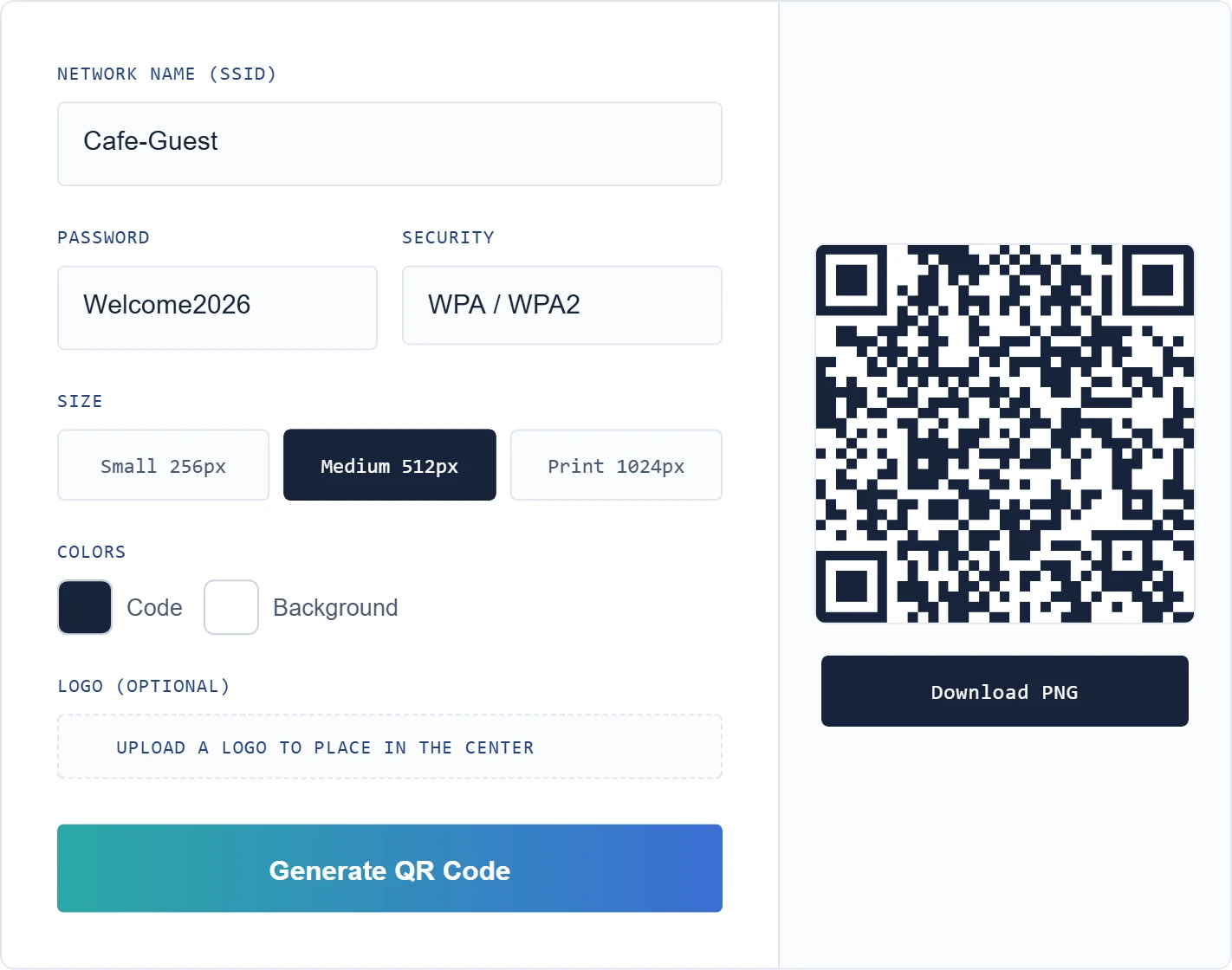
- Choose the type: Link / Text, Wi-Fi or Contact Card.
- Enter the link, network details or contact details.
- Pick a size and colors. Add a small logo in the center if you want.
- Click Generate QR Code, then scan it with your phone camera to check it works.
- Click Download PNG and add the image to your flyer, menu, website or business card.
What can you use a QR code for?
| QR code type | What happens when someone scans it | Good for |
|---|---|---|
| Link / Text | Opens a website or shows a short message | Menus, flyers, product packaging, portfolios |
| Wi-Fi | Joins your Wi-Fi network without typing the password | Homes, cafes, offices, rentals and events |
| Contact Card | Offers to save your name, phone and email as a contact | Business cards, name badges, trade shows |
Want a strong password for the network you share? Create one with our Password Generator before making a Wi-Fi QR code. For printing tips and how to share Wi-Fi from your phone, read how to make a QR code for Wi-Fi.
How do you scan a QR code?
- iPhone and Android: open the camera app, point it at the code and tap the link or notification that appears.
- From a screenshot or photo: open the Scan QR Code tab above and upload the image. It is decoded in your browser.
Tips for a QR code that scans reliably
- Keep strong contrast: a dark code on a light background scans fastest. Avoid light codes on dark backgrounds.
- Keep the logo small: the generator uses high error correction, so a small logo works, but a large one can break the code.
- Size it for the distance: for print, use the 1024px download and print the code at least about 2 cm (0.8 inch) wide. A rough rule is that the scanning distance can be up to about 10 times the code’s width.
- Leave a quiet zone: keep a clear border around the code, without text or graphics touching it.
- Test before printing: scan it with two different phones, in good and dim light.
Static vs dynamic QR codes
The codes you make here are static: the link or details are stored inside the code itself. They never expire and do not depend on any service, but you cannot change the content after printing. Dynamic QR codes from paid services point to a short link that can be edited and tracked, which means they stop working if the subscription ends. If you may need to change the destination later, link to a page on your own website that you control.
Received a QR code as an image? See how to scan a QR code from a screenshot on iPhone, Android and PC.
Need to read a code instead? Use our free QR Code Scanner to scan a QR code from any image or screenshot.
Frequently asked questions
Is this QR code generator free?
Yes. Generating, adding a logo, downloading and scanning are free, with no sign-up and no limit on how many codes you create.
Do the QR codes expire?
No. They are static codes, so they keep working as long as the link or details inside them stay valid.
Is my Wi-Fi password or contact information sent anywhere?
No. Codes are generated in your browser with JavaScript. Nothing you type is uploaded to or stored by ShokokoTech.
Will a Wi-Fi QR code work on iPhone and Android?
Yes. The standard Wi-Fi QR format used here is supported by the camera apps on current iPhones and Android phones, which offer to join the network after scanning.
Can I use these QR codes commercially?
Yes. You can print them on products, menus, packaging and ads.
More free tools
Compress or resize the logo before adding it with our Image Toolkit, check your connection with the Internet Speed Test, create an email signature to match your business card, or see all our free online tools.