To summarize a PDF with AI, upload the file to ChatGPT, Claude or Gemini (the paperclip or plus button next to the message box), then ask for exactly the summary you need, such as “Summarize this in 7 bullet points and list every deadline with its page number.” All three have free plans that can read PDFs, with daily limits. For the best results, say who the summary is for, ask for page references so you can check the facts, and split very long documents into parts. Scanned PDFs need extra steps because they contain pictures of text, not text. This guide covers each tool, ready-to-use prompts and how to avoid wrong summaries.
Which AI tool should you use to summarize a PDF?
| Tool | Best for | Good to know |
|---|---|---|
| ChatGPT | Quick summaries, follow-up questions, turning a PDF into notes or slides | Free plan has upload limits; PDFs with images are read mostly as text |
| Claude | Long reports, contracts and research papers | Accepts PDFs up to 1,000 pages; reads charts and visuals in PDFs of 100 pages or fewer |
| Gemini | Files already in Google Drive or Gmail | Gemini in Google Drive can summarize PDFs from the side panel on eligible plans |
| Adobe Acrobat AI Assistant | People who work in Acrobat all day | Built into Acrobat; a paid add-on for most users |
If you are choosing one assistant for everything, our comparison of ChatGPT vs Claude vs Gemini can help.
How do you summarize a PDF with AI, step by step?
- Check the PDF. Open it and try to select a line of text. If you can, the AI can read it. If you cannot, it is a scanned image; see the section on scanned PDFs below.
- Remove sensitive details such as account numbers, ID numbers and other people’s personal information, or use a file you are allowed to share.
- Upload the file. In ChatGPT, Claude or Gemini, click the paperclip or plus icon next to the message box and choose your PDF.
- Ask a specific question. Tell the AI who the summary is for, how long it should be and what to focus on (prompts below).
- Ask for page numbers next to key facts, then spot-check two or three of them in the original.
- Follow up. Ask “What did you leave out?”, “Explain section 3 in simpler words” or “Turn this into a one-page brief.”
Step-by-step help for each app: how to use ChatGPT, how to use Claude and how to use Gemini.
Prompts you can copy
Quick overview
Summarize this PDF in 7 bullet points for a busy reader.
Start with the single most important takeaway.
Add the page number after each point.
Key facts only
List every date, deadline, price, number and requirement in this PDF
as a table with columns: item, value, page.
Do not include anything that is not in the document.
Section by section
Summarize each section of this document in 2 sentences.
Use the document's own headings.
Then list 3 questions I should ask about it.
For a student
Explain this chapter like I'm a first-year student.
Give me the 5 key ideas, 5 key terms with simple definitions
and 5 quiz questions with answers.
For a decision
I need to decide whether to [sign / buy / approve] this.
Summarize what it commits me to, the costs, the risks,
any unusual terms, and what is missing or unclear.
The more you say about your goal, the better the summary. Read how to write better AI prompts for more techniques.
How do you summarize a very long PDF?
- Use a tool built for long documents. Claude accepts PDFs of up to 1,000 pages, though it reads only the text, not the charts, in files over 100 pages.
- Work in parts. Ask for a summary of chapters 1 to 3, then 4 to 6, and finally a combined summary of the summaries.
- Start with the structure. Ask “List the sections of this document with one line each,” then pick the sections that matter to you.
- Ask targeted questions instead of one giant summary: “What does it say about refunds?” or “Find every mention of data sharing.”
What about scanned PDFs?
A scanned PDF is a set of photos of pages, so there is no text for the AI to read. ChatGPT’s help center notes that image-only PDFs are not supported for document analysis. You have three options:
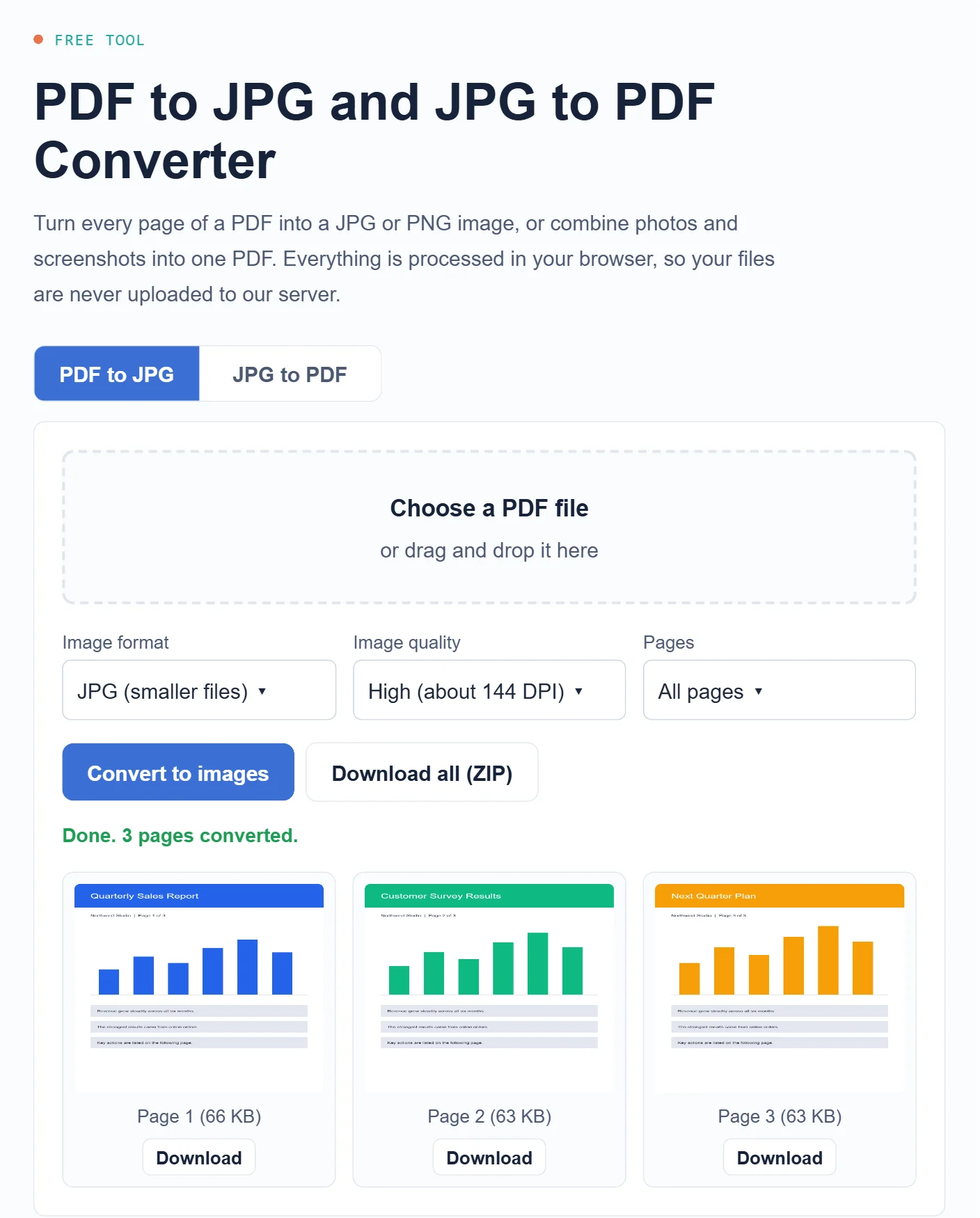
- Convert the pages to images with our free PDF to JPG converter, then upload the images to an AI assistant that can read text in pictures.
- Run OCR (text recognition) first with a scanner app or a PDF editor, which turns the pictures into selectable text.
- For a few pages, take screenshots and paste them into the chat.
How do you make sure the summary is accurate?
AI summaries are fast but not perfect. They can skip important details, mix up numbers or, occasionally, state something the document does not say. To stay safe:
- Always ask for page references and check the facts you will act on.
- Tell it to stay within the document: “If the answer is not in the PDF, say so.”
- Ask a second question in a different way to see if the answers agree.
- Read the original for anything legal, medical or financial. Use the summary as a map, not a replacement.
Is it safe to upload PDFs to AI?
For public documents, articles and your own notes, generally yes. For contracts, medical records, tax forms or work files, think first. Check whether your chats may be used to train the AI, and follow your employer’s rules for company documents. Our guide to AI chatbot privacy settings shows how to turn off training in ChatGPT, Claude and Gemini.
Frequently asked questions
Can I summarize a PDF with AI for free?
Yes. The free plans of ChatGPT, Claude and Gemini can all read PDFs, with limits on file size and the number of uploads per day. Paid plans raise those limits.
Why does the AI say it cannot read my PDF?
The file is probably a scan, password-protected or too large. Remove the password, run OCR or convert the pages to images, or split the file into smaller parts.
Can AI summarize a PDF in another language?
Yes. Ask, for example, “Summarize this Spanish PDF in English.”
How long should a summary be?
For most documents, 5 to 10 bullet points or about 10 percent of the original. Paste the result into our word counter if you need to hit a specific length.
Turn long PDFs into answers
Upload the PDF, ask a specific question, request page numbers and check the facts that matter. With the right prompt, a 40-page report becomes a one-minute read. Students can find more study helpers in our list of the best AI tools for students.
Sources
- Claude Help Center: Upload files to Claude
- OpenAI Help Center: File uploads FAQ
- Google Workspace Updates: Gemini in the side panel of the Google Drive PDF viewer
This article is based on the official documentation and reporting listed in the sources above, checked on October 27, 2026. Features and prices change, so confirm details on the official pages before you buy. ShokokoTech does not accept payment for coverage. Read our editorial policy.