A Wi-Fi QR code lets guests join your network by pointing their phone camera at it, with no password to type. To make one, open a free QR Code Generator, choose the Wi-Fi tab, enter your network name and password, pick the security type and download the image. You can also show a Wi-Fi QR code straight from an iPhone running iOS 18 or later, an Android phone running Android 10 or later, or a Windows 11 PC. This guide covers each method, plus tips for printing and keeping your network safe.
What is a Wi-Fi QR code?
It is a normal QR code that stores your network details in a standard text format that phone cameras understand:
WIFI:T:WPA;S:YourNetworkName;P:YourPassword;;
T is the security type, S is the network name (SSID) and P is the password. When someone scans it, their phone offers to join the network. The code does not connect to the internet or to any service, so it never expires. It only stops working if you change the network name or password.
How do you make a Wi-Fi QR code online?
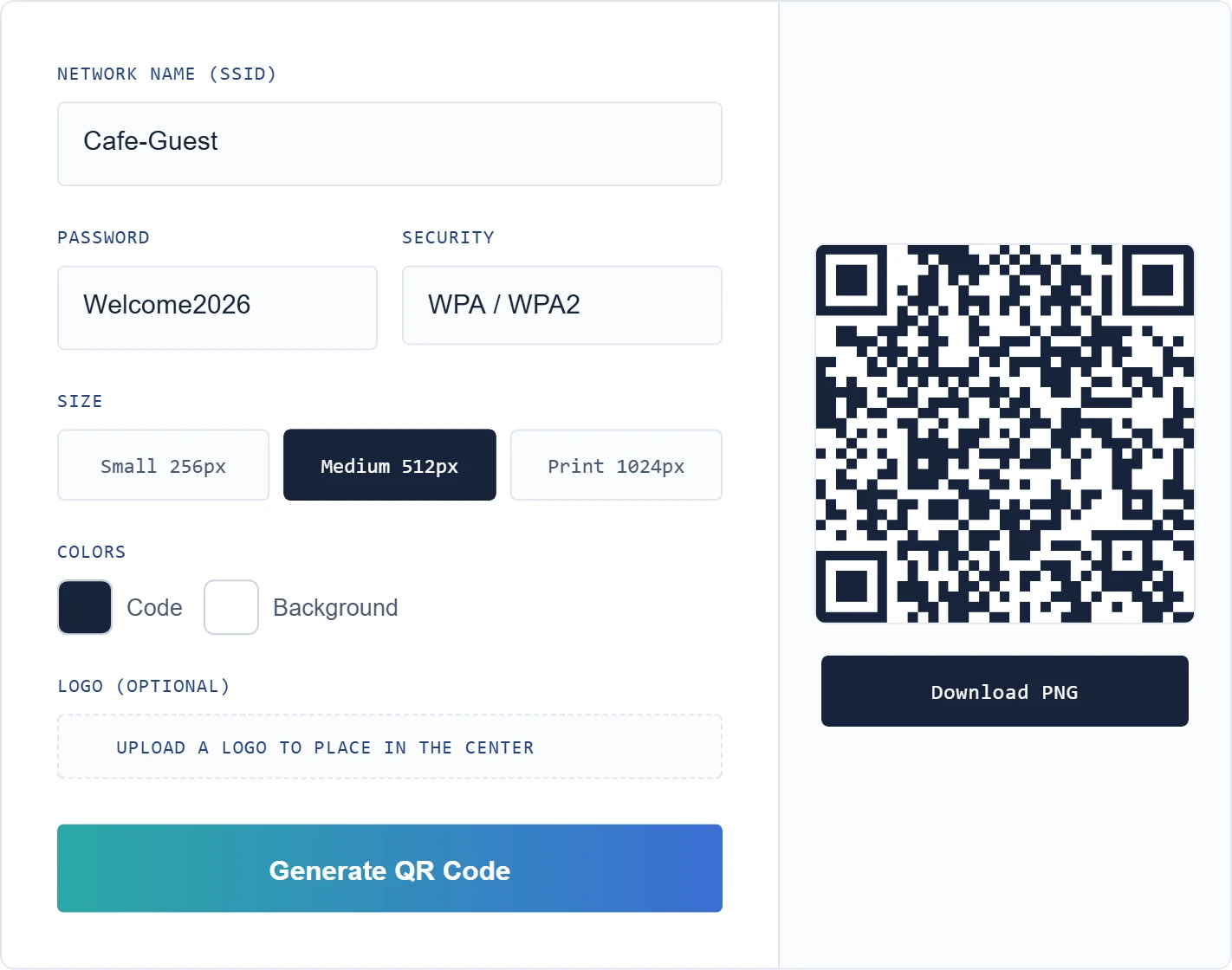
- Open our free QR Code Generator and click the Wi-Fi tab.
- Type the network name exactly as it appears in your phone’s Wi-Fi list. Capital letters and spaces matter.
- Type the password exactly, including any symbols.
- Choose the security type: WPA/WPA2 for almost all home networks, including routers in WPA2/WPA3 mixed mode, WEP only for very old routers, or No password for an open network.
- Pick a size. Use Print 1024px if you will print it. You can also change the colors or add a small logo.
- Click Generate QR Code, scan it with your own phone to test it, then click Download PNG.
The code is created in your browser, so your network name and password are not uploaded to or stored by ShokokoTech. Special characters such as semicolons, commas and colons are handled automatically.
How do you share Wi-Fi with a QR code from your phone or PC?
If a guest is standing next to you, your device can show a code on screen without any website:
| Device | Where to find it | Requirement |
|---|---|---|
| iPhone | Passwords app > Wi-Fi > choose the network > Show Network QR Code | iOS 18 or later |
| Android | Settings > Network or Connections > Wi-Fi > tap the gear or info icon next to the network > Share (on Samsung, tap the QR code icon) | Android 10 or later; menu names vary by phone |
| Windows 11 | Settings > Network & internet > Wi-Fi > your network’s properties > next to the Wi-Fi password, click Show | Windows 11 version 24H2 or later |
These are great for one guest at a time. For a code you can print and leave on a table or a fridge, download one from the generator instead.
How do you scan a Wi-Fi QR code?
- iPhone: open the Camera app, point it at the code and tap Join Network.
- Android: open the Camera app or Google Lens, point it at the code and tap the prompt to connect. On some phones, use the QR scanner icon in the Wi-Fi settings screen.
- From a screenshot: upload the image in the Scan QR Code tab of our QR Code Generator to see the network name and password.
Where should you use a Wi-Fi QR code?
- At home: a small card on the fridge or near the router for visiting family and friends.
- Cafes and restaurants: on table cards, menus or near the counter, with the network name printed below for anyone without a camera app.
- Vacation rentals: in the welcome guide, so guests connect without messaging you.
- Offices and events: on a sign at reception for the guest network.
Tips for printing a Wi-Fi QR code
- Print it large enough: at least about 2 cm (0.8 inch) wide for a card held in the hand, and larger for a wall sign read from a distance.
- Keep high contrast: dark code on a white background. Avoid placing it on busy photos.
- Add a short label: “Scan to join our Wi-Fi”, plus the network name in text as a backup.
- Use a matte finish: glossy lamination can reflect light and make scanning harder.
- Test the printed copy with an iPhone and an Android phone before you put it out.
Is a Wi-Fi QR code safe?
The code contains your password in plain text. Anyone who scans it, or takes a photo of it, can read the password. Keep these points in mind:
- Use a guest network for visitors and customers. Most routers can create one that is separate from your own computers, cameras and smart devices.
- Use a strong password. A QR code means nobody has to type it, so you can use a long random one from our Password Generator. See how to create a strong password.
- Do not post it publicly online, for example in a social media photo of your home or office.
- Change the password if needed. If too many people have it, change it on the router and print a new code.
Why is my Wi-Fi QR code not working?
- Wrong name or password: they must match exactly, including capital letters, spaces and symbols.
- Wrong security type: try WPA/WPA2 if you chose something else.
- Old phone software: very old phones may not read Wi-Fi codes from the camera. Update the phone or use a QR scanner app.
- Too small, blurry or low contrast: print a bigger copy with dark code on a light background.
- The password changed: make a new code whenever you change the router password.
If guests connect but the internet still feels slow, run our Internet Speed Test and read how to test your internet speed accurately.
If your guest receives the Wi-Fi code as an image, they can still use it. Our guide on how to scan a QR code from a screenshot shows how on iPhone and Android.
Received a Wi-Fi QR code as an image? Our QR code scanner shows the network name and password so you can copy them.
Frequently asked questions
Do Wi-Fi QR codes expire?
No. The details are stored inside the code, so it works until you change your network name or password.
Can I make a Wi-Fi QR code for free?
Yes. Our QR Code Generator is free, needs no account and has no limit on the number of codes.
Does a Wi-Fi QR code work on both iPhone and Android?
Yes. Current iPhones and Android phones read the standard Wi-Fi QR format with the built-in camera.
Can I add my logo to a Wi-Fi QR code?
Yes. Upload a small logo in the generator. It uses high error correction, so a small logo in the center still scans. Resize the logo first with our Image Toolkit if the file is large.
Make your Wi-Fi QR code now
It takes less than a minute: open the QR Code Generator, enter your network details, test the code with your phone and print it. For more free tools, see all our free online tools.
Sources
- AppleInsider: How to share a Wi-Fi QR code in iOS 18
- Android Authority: How to share a Wi-Fi password on Android
- Pureinfotech: How to share Wi-Fi password with a QR code on Windows 11
This article is based on the official documentation and reporting listed in the sources above, checked on October 18, 2026. Features and prices change, so confirm details on the official pages before you buy. ShokokoTech does not accept payment for coverage. Read our editorial policy.