

PDF to JPG and JPG to PDF Converter
Turn every page of a PDF into a JPG or PNG image, or combine photos and screenshots into one PDF. Everything is processed in your browser, so your files are never uploaded to our server.
Use the arrows to change the page order. Transparent areas in PNG images become white in the PDF.
How do you convert a PDF to JPG?
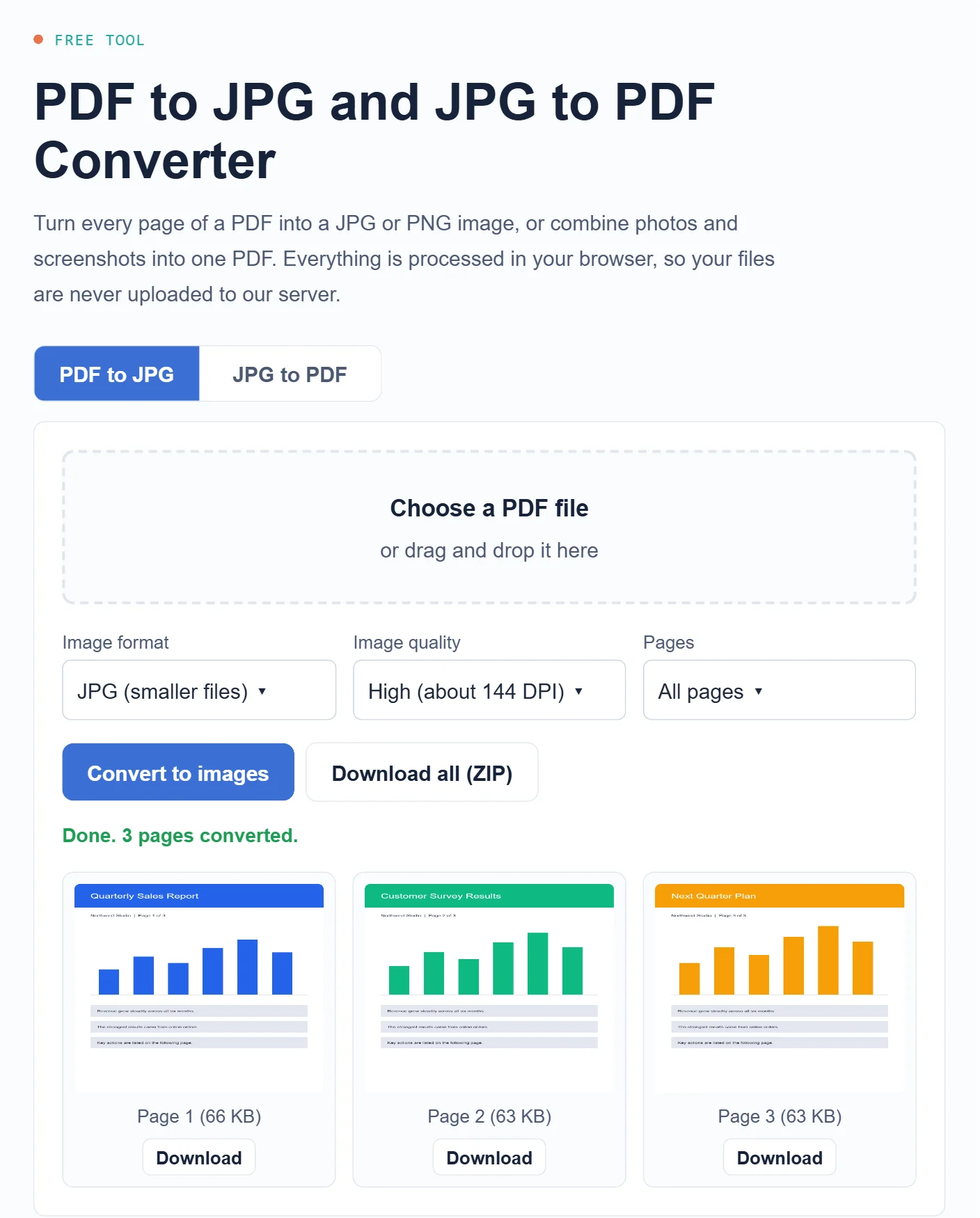
- Open the PDF to JPG tab and choose your PDF file.
- Pick JPG for smaller files or PNG for the sharpest text, then choose the image quality.
- Click Convert to images. A preview of each page appears below.
- Download single pages, or click Download all (ZIP) to save every page at once.
How do you convert JPG images to a PDF?
- Open the JPG to PDF tab and add your images. You can select several at once.
- Use the arrows to put the pages in the right order, or remove any you do not need.
- Choose the page size and margin. “Same as image” keeps each photo at its own size.
- Click Create PDF to download one PDF with all your images.
JPG or PNG: which should you choose?
| Format | Best for | File size |
|---|---|---|
| JPG | Photos, scanned pages, sharing by email or chat | Small |
| PNG | Pages with small text, charts, diagrams and screenshots | Larger |
For most documents, JPG at High quality is a good balance. Choose Very high only when you need to zoom into small print, because the files get much bigger. To shrink images afterwards, use our Image Toolkit.
Is it safe to convert files here?
Yes. The conversion runs in your browser using open-source libraries (PDF.js by Mozilla and jsPDF). Your PDF and images are not uploaded to ShokokoTech or stored anywhere. That makes it suitable for documents like receipts or forms, but as with any file, keep sensitive documents on devices you trust.
Tips for better results
- Large PDFs: files with many pages take longer and use more memory, especially on phones. Convert the first page to test, then convert all.
- Scanned documents: the images look exactly like the scan. To make text searchable you need OCR, which this tool does not do.
- Photos from a phone: if a photo appears rotated, rotate it in your photo app first, then add it again.
- Password-protected PDFs: remove the password in the app that created the file, then try again.
Frequently asked questions
Is this PDF to JPG converter free?
Yes. There is no sign-up, no watermark and no limit on how many files you convert.
Does it work on iPhone and Android?
Yes. It works in modern mobile browsers. Very large PDFs may be slow on older phones, so try High quality instead of Very high.
Will the quality of my PDF change?
Each page is rendered as a new image at the quality you choose. Text in the images is not editable, but it stays sharp at High or Very high quality.
Can I convert PNG or WebP images to PDF?
Yes. The JPG to PDF tab accepts JPG, PNG and WebP images and combines them into one PDF.
Want more ways to convert, including built-in options on Mac, Windows, iPhone and Android? Read our guide on how to convert PDF to JPG.
More free tools
Compress or resize your images with the Image Toolkit, create an email signature, or see all our free online tools.